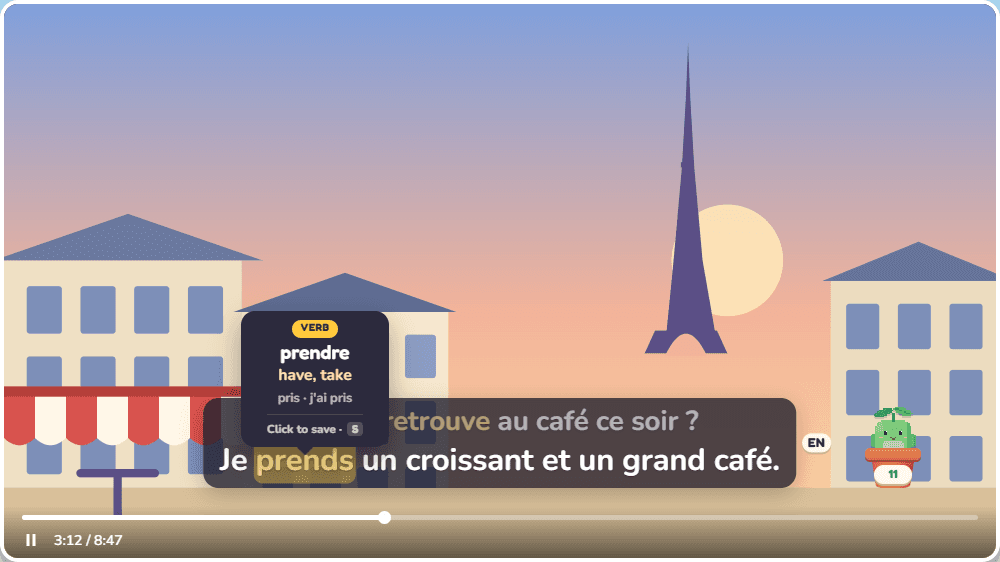
Hover any word
Its English, part of speech and the form worth learning, right on the video. The video waits while you read.
Free browser extension
Learn languages from the YouTube videos you already watch. Hover any subtitle word for its English, click to save it, and Sapling brings it back just before you'd forget it.
Sapling Subtitles is waiting for the Chrome Web Store to approve it. Until then, load it yourself:
Chrome may remind you that a developer-mode extension is on; that's expected for anything loaded this way. When the store version is out, remove this one and add that instead so it updates itself.
Its English, part of speech and the form worth learning, right on the video. The video waits while you read.
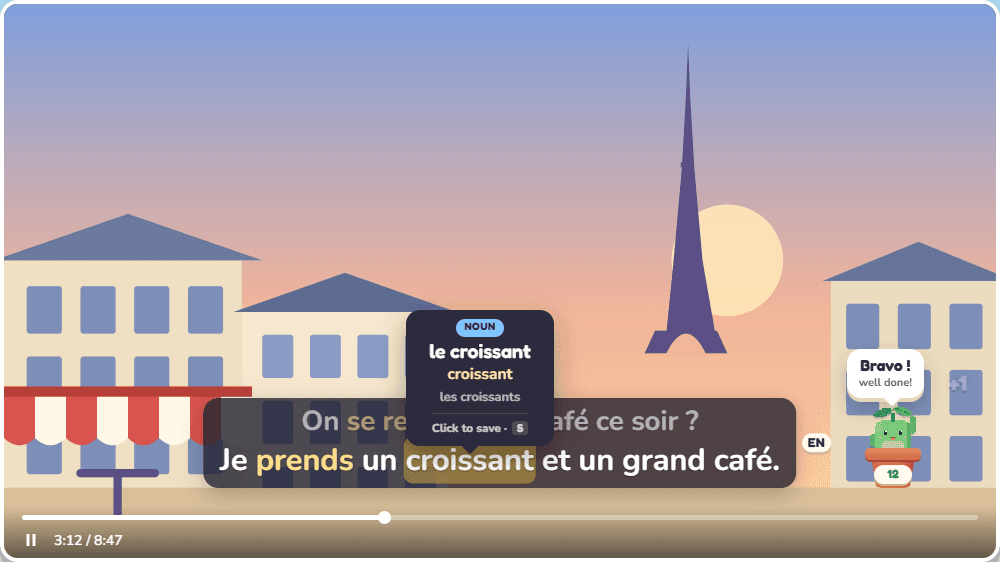
It flies into your Notebook with the sentence it came from and a link back to that moment.
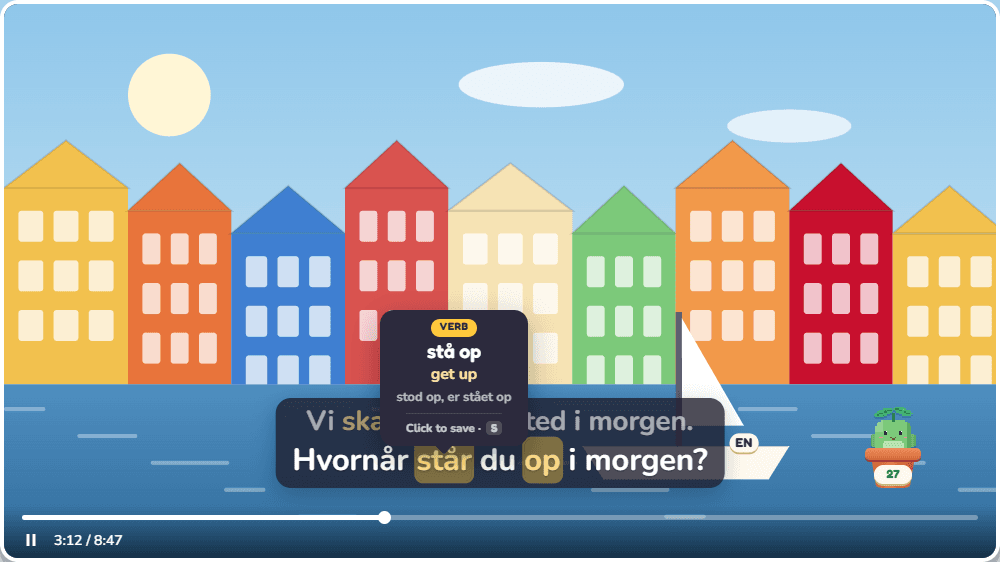
Particle verbs and set phrases are saved the way you'd look them up: står … op becomes stå op.